Showing posts with label Tutorials. Show all posts

2025-04-16

What sessions should Facilities / Operations attend at AECTechCon 2025?

Ah, another AEC conference... and I'll bet it's all geared toward Architects and GCs... or is it? 

Register for AECTechCon 2025 here. 

Spoiler alert... it is not. AECTechCon runs May 7th & 8th in St. Charles, Missouri, not too far from the STL airport. I've been to this conference many times over the years, and it just keeps getting bigger and better (Also? We were in this same venue last year and the food was EXCELLENT for all meals, way better than stale muffins, dry sandwiches, and salads in a shot glass like I've experienced at other places).

Coming from the owner's side, I know it's hard to find classes with our peers that actually apply to facilities, so I did the leg work for you and put together a list of classes that actually apply to our part of the lifecycle. Apologies for making multiple recommendations for some of the time slots, but there is a lot of good content, even for those of us who are not on the design, production, and construction side. 


There are different official tracks, but obviously the folks in operations can span such a wide variety of skills and tasks, that we would want to attend across multiple themes:

·       BIM/VDC

·       Innovation & Emerging Technologies

·       IT & Infrastructure

·       Safety

·       Workforce Development

DAY ONE

BREAKFAST – registration and food

Conference Opening – Leonard Teonjes, Alex Belkofer, and Travis Byerly

Keynote: Empowering the Next Generation of AECO - Dustin Burns

Democratizing Digital Maturity through Discovery - Eveart Foster

BREAK – Exhibit Hall Opens

The Power of Low-Code Automation – Carl Storms

OR Enhancing Construction Safety with QR codes – Joe Shyrock

BREAK

Modeling Sustainability: Embedding Data for Reduced Embodied Carbon in Architectural Design – Ryan Taube

OR Women in Construction – Kendra Brown (DFW Intl. Airport), Gwen Arenberg, Jamie Berzon, and Leticia Lago

LUNCH

Digital Twin (Design Data Management) for Operations – Melanie Stone (yes, plugging my own class, but for obvious reasons)

OR Reality Capture to BIM in Critical Environments – Aaron Johnson, Marc Cady, and Aurore Fournier

BREAK

Using Existing MEP Systems in a New Project – Ray Blowers and Geoff McCally

OR Getting Along: The Importance of Interconnectivity within your Systems – Victor Zhang and Jacob Shavel

OR The AI Advantage: Tools, Techniques, and Truths – Carl Storms

BREAK

General Session: Apps for Mental Health / Construction Safety

Closing Keynote: It’s Still Construction: Restoring Faith in Tech with the Craft Workforce – Sal D’ambrosia

HAPPY HOUR – Food, drinks, networking, and asking exhibitors questions

DAY TWO

BREAKFAST – Registration and food

Opening Keynote – Paperless Buildings: How, What, & Why of ConTech – Hamzah Shanbari

General Session: Bridging the Gap from Office to Field – Paul Hedgepath

Safety Talk with AGCMO’s – Brandon Anderson

BREAK

Enhancing Operations through Digital Delivery and Digital Twins – Mark Mergenschroer

OR Practicing AI using the fundamentals of Data & Processes in Construction – Juan Nunez and Jason Jiang

OR Building Trust and Innovation: Psychological Safety in AEC – Karen Taylor-Liggins

BREAK

Building Operations: Addressing the 95% of Wasted Construction Data – Mark Mergenschroer

LUNCH

Using Augmented Reality to Add Life to the Model – Tom Colyer and Nick Landzettel

OR Utilizing Technology to Minimize Incidents & Orchestrate a Culture of Safety, Efficiency, and Engagement – Tyfoom & VeeJay

OR Data-Driven Insights: Leveraging Dashboards for Effective Cost Analysis – Ryan Meyer

OR Leading Change: Empowering Teams for a Tech-Ready Future – Jeff Visnic

BREAK

Leading Digital Transformation Across Diverse Teams without Direct Authority – Brian Myers

Strategizing AI: From Blueprints to Algorithms – Cindy Baldwin & Scott Yates

Building Your Future: A Comprehensive Guide to BIM Career Development – Katie King and Adam Lega

BREAK

General Session: Boots on the Ground Embracing Field Tech – Jeff Montgomery & Panel

CLOSING – Alex Belkofer & Travis Byerly – Closing Remarks and Prizes 


Watch a video recap of past events: LinkedIn video


2024-06-25

Digital Twin From the Owner's Perspective - AUGI Con 2024 Video

A few weeks ago, I was honored to be one of the few speakers chosen to present at the first ever AUGI Con 2024.

There were so many great questions and discussions from the attendees. 

The recording of that presentation is now live!

AUGI Con 2024 area - Digital Twin from the Owner's Perspective video 

(EDIT: Now also available on YouTube! Though you still need to go through the Community App to access the slide deck and handout.)

You do need to be registered as a member at AUGI.com first, and then the AUGI Community (available desktop and in an app) which will be checked against your AUGI membership (there is a free membership level available, so there is no cost involved). 

I was worried about going over on time and talked pretty fast, so it's probably only about a 30 minute presentation, with about 15 minutes of Q&A. (If this presentation sounds familiar outside of AUGI, I gave a very similar talk at AECTechCon here in St. Louis the following week.)

In addition to a video recording of the session, my slide deck, as well as a 10 page course handout that provides almost as much detail as the talk itself, are also available in the mighty AUGI Community. 


First it was "BIMwashing", now it is "TWINwashing".

Before we try to sell Digital Twin services to facility operators, let's discuss how owners are using your design data today. 

Understanding what an Integrated Workplace Management System, or Computerized Maintenance Management System, is will be vital to determining what your client actually needs from your construction documentation. 

Learning how few people will actually interact directly with your models can bring perspective of how facilities/operations curates technical documentation and makes updates throughout the lifecycle of their campus.

Who is the Owner

  • Who are the stakeholders?
  • How will they access your data?

IWMS

  • What is an Integrated Workplace Management System?
  • How does my data get ingested & updated over the lifecycle?

Project Closeout

  • What handover mistakes are commonly seen from the AEC side?
  • What mistakes are commonly seen from the Owner’s side?

How does Digital Twin fit in?

  • What real world problem would a ‘Digital Twin’ solve?

In addition to giving definitions and background data, real world examples were also provided at each step, from my 20+ years of experience working in Facilities, networking with other Owners, and being a consultant who implements and supports facilities operations and management around the world.


Thank you to my team over at R.O.I. Consulting Group for highlighting my Digital Twin for FM session to our blog readers!

2022-12-07

Tutorial: Creating a Basic Revit Model for Digital Twin testing

My company, R.O.I. Consulting Group, does Facilities consulting for a few IWMS and workplace management solutions. Not only are we using Autodesk Tandem for ourselves, we will also be coaching our clients through implementations or just Proof of Concept (POC) efforts.

So, let's say you want to try out Tandem without trying to justify expenses and write up RFPs and hire consultants, etc and just do it yourself.

First thought is that, at this point, Tandem will accept .rvt and .ifc formats only. 

If you don't have a Revit model yet, but want to proceed with testing, just download a trial of Revit LT and trace it. Eventually, you will want to have a full version of Revit, but if you need something to show people in order to get funding, this is a perfectly good place to start.


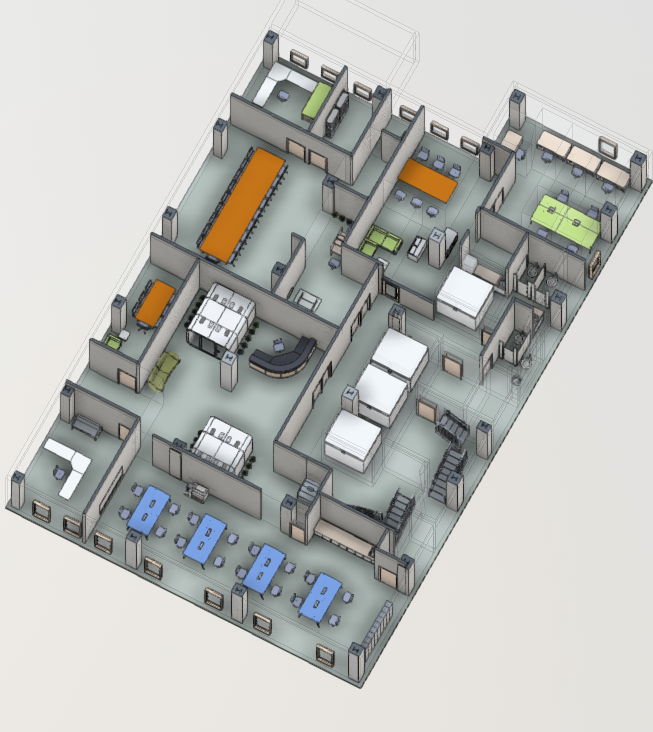
This is the current model of our offices, after I tweaked it and loaded it into Tandem. I'll add MEP components at some later time.

Following are the steps you can take to make a simple Revit model of one of your locations to start with. DISCLAIMER: To any design and construction side folks... we are not building from this, it is already built, please don't come at me for the lack of precision. I'm not showing how to design a project (because that is outside of my skillset). 

Creating a Revit Model for Tandem from a CAD Floorplan:

1.       Open Revit LT and create new project from Commercial – Imperial template

2.       On the Insert Tab, click Link CAD or Import CAD

3.       Navigate to your CAD file and select it.

TIP: Drag a folder from the navigation list to the shortcuts panel on the left, to make it easier to find your way back to this directory next time. (or click the Tools dropdown on the lower left of this dialog box to add this directory to Favorites or the shortcuts panel.) This tip works in AutoCAD and other Autodesk software.

4.       On the Architecture tab, click on the Wall dropdown to select Wall: Structural and trace the exterior walls and any known load-bearing walls in the floor plate.

5.       On the Architecture tab, click on the wall dropdown to select Wall: Architectural and trace the remaining walls on the floor plate.

6.       Add the columns to your model. This can be accessed through the Structure panel of the Structure tab, or the Build panel of the Architecture tab. Though on the structure tab, you are automatically selecting a structural column, on the Architecture tab, you must select between that and architectural columns.

a.       Start with the structural columns, as pictured on the right

b.       Then add Architectural columns where needed, as pictured on the left


7.       On the Build panel of the Architecture ribbon tab, click Door and insert doors where appropriate.

8.       On the same panel, click Window to insert windows where appropriate.

TIP: To hide your floorplan and assess the current state of your drawing, go to the Graphics panel of the View tab and click on Visibility / Graphics.

Navigate to the Imported Categories tab of the Visibility/Graphic Overrides for Floor Plan dialog box and uncheck the option ‘Show imported categories for this view’.

You can also control visibility by layer.

Click Apply and OK to save the settings.

Let’s compare the before and after below. You can see we still need to add casework, furniture, plumbing fixtures, and the Room objects… and I missed 3 Architectural columns I should have placed.

9.       We should first add Floor > Floor: Architectural from the Build panel of the Architecture tab. It will prompt you to select the bounding walls of your floor plate and will generate the floor object for you.

10.   For the casework, go to the Insert ribbon tab and the Load from the Library panel and click the Load Family button.


I’m going to keep things simple and choose base cabinets and some countertops. Feel free to check the standard families and replace the generic ones with something that reflects what is actually built out in the space. You might also find a site like BIMObject useful in locating a variety of furniture, fixtures, and other Revit families.

11.   Once your families are loaded, use the Project Browser on the left side of the screen to find your item, expand any available options, then right-click on that option and select Create Instance from the menu.

12.   Add elevators and other building components as needed.

13.   Follow the steps for creating a Room object here. You’ll want to make use of the Room Separator tool, to add bounding lines to any spaces without doors to break them up and to cubicle areas. And then use the Room tool to add the final room object with the remaining space around the cubicles. 

Wondering why I insist on polylining (sic) cubicles? 
I explained the reasons in this article. 

14.   Update the room tags to reflect the type of space and the room numbers being used, by clicking on the tag text.

15.   Under the Room and Area panel of the Architecture tab, click the down arrow to access the Color Schemes function. You can shade the rooms by Name or other parameters.

16.   Once you have your scheme established (it should be generated automatically, but you can adjust colors and hatches if you like), you will need to enable it in the Graphics pane on the left, using the Color Scheme field.

17.   Now it is time to upload our model to Tandem. Open your project from the home page, click the Files button on the left and select Import Model. We should not have any Phases to choose between in the new model we created, so all we do is name the floor in the Label field.


Now you have a basic model. You can go back and tweak things as you notice issues. 

For example, our lobby couches had been moved, and one of the elevators was facing the wrong direction, and some walls are glass instead of drywall. 

It is super easy to replace a model in Tandem once you have modified it. Just click on the name of your model in the Files tab and you'll get the Update Model dialog box. 


Video Tutorials

Get Started with Tandem - https://intandem.autodesk.com/resource/get-started-with-tandem/

Create a site, import model, work with filters to look at elements, add template to help with assets

Capture Asset Data - https://intandem.autodesk.com/resource/capture-asset-data/

Specify a facilities template and map assets, it applies parameters and counts as tagged assets

Capture data – select assets in viewer and assign data in properties panel

Working with the Inventory in tabular format (can export/import data using Excel)

Defining Tagged Assets https://intandem.autodesk.com/resource/defining-tagged-assets/

  • Asset is an object (furniture, equipment, door)
  • Parameters are properties we want to track (installation date, mfr, warranty end date, etc)
  • A group of parameters is called a Parameter Set
  • Classification – way to categorize objects, we can create what we want or use existing (master format, uniformat)
  • Different types of facilities might have different data needed
  • Can apply parameter individually by Element or as a group by Type
  • We create a template and include the classifications and parameters to include

Specify Data Requirements - https://intandem.autodesk.com/resource/specify-data-requirements/

2021-02-20

How do you Erase?

The last team that I joined, I was asked to review their tutorials for common tasks and one of the things that I noted was that users were instructed to DELETE <ENTER> objects. 

When my coworkers would present, some of them would type ERASE <ENTER> and others would type E <ENTER> or click the Erase button on the Modify tab of the Ribbon.

Personally, I prefer to use the right-click menu or by using the Delete button on the keyboard.


I recorded a video to demonstrate different ways to erase an object, including through the Quad cursor menu. 


Nothing here is really earth-shattering, we all know how to delete objects in a CAD program. 

But it would be a good idea to sit down with your team and see if the way that they call common commands could be updated to be more efficient, or if you might want to update your training documents to save folks a few keystrokes.


If you want to try using BricsCAD, click here for more information. 

2020-04-11

Methods of polylining and Boundary/BPOLY

So, as a Facilities person using AutoCAD (although Revit can sometimes be finicky about 'bounding' properties and having to manually add/adjust bounding lines, too), polylining is a must for all of us.

I still occasionally run across users who are not familiar with the Boundary command (or BPoly).


I use this command to create polylines from enclosed areas, but, you can also create Regions with it. 

Obviously, in this process, you have to be aware of the polylining standards being used. Whether it is BOMA or some client-specific method. 

If you're plining an area with a predictable pattern (such as a cube farm), setting up construction lines (CONSTRUCTION LINE or RAY) at the midpoint of the walls can be a way to provide yourself with enclosed areas to use the Boundary (BOUNDARY or BPOLY) command on. 
Make sure you have a distinct layer set as Current, so that you can isolate it (LAYISO). 

Annoyingly, in Autocad 2021, it appears that the default LAYISO behavior is to lock layers, rather than the prior default of turning them off, so you'll have to LAYISO > S to change the settings to O. 

If they are the same size, I tend to just draw a rectangle and copy or array as appropriate.

If you have less regular areas, such as an office suite or cafeteria, you will most likely  manually polyline the smaller spaces, then use Boundary on the remaining open space (lobby or seating). 

Just remember handy tools like the M2P OSNAP, where you can click two points and your pline will snap to the midpoint between them, so you can use RECTANG instead of PL to make your bounding lines, where appropriate. 


I actually set up an M2P shortcut on my tool palette, just so I can keep clicking along. 

When working in a busy drawing, I tend to keep my running osnaps to a minimum so I don't snap to the wrong thing, and just select more specific snaps from my TP when they are required. 

So, once you have your surrounding spaces polylined to make an enclosed space, then you can use BPOLY. 

Here the cyan line is my exterior gross, the magenta represents the interior gross line, the blue is for the room boundaries and the yellow is a pair of break lines that prevents islands (Tririga would show an island space as a Child space, but, I believe ARCHIBUS and FM:Systems would freak out about it, islands are a no-no. And, though I am currently a Tririga user, we still avoid islands and do not utilize child spaces with our client.). I feel pretty safe with with an 1/8" gap (.1 if you want to save on the keyboard input). 

A tip for generating the exterior gross line is by using the AREA command. 

My next step would be to select the interior gross line, a room boundary and one of the yellow breaklines and type LAYISO, so all of the other layers are turned OFF. Run the boundary command, select a point inside of the area, and your polyline is generated. 


Confused about the difference between freezing a layer and turning it off?
http://mistressofthedorkness.blogspot.com/2019/09/turning-off-or-freezing-layer-in.html

Now, I did have a reader tell me awhile back that he created a VBA program that would isolate to the desired layers and start the boundary command. I have done a bit of VBA in the past and even had the honor of assisting Lee Ambrosius in his programming labs at AU for years, but, I haven't quite gotten around to making my own program. 
But, even if you're not comfortable with programming, you could also speed things up by isolating these layers and use the Layer States dropdown on the expanded Layers panel on the home tab of the ribbon to create a new layer state and while in the Layer States Manager, Export that setting to import into other drawings
Because, of course, if you're using CAFM/IWMS, you are using the exact same layer names every time.


Happy Polylining, folks! 

2019-07-13

Saving time: Optimizing a Dull Structural Task with Dynamo

I have the pleasure today of hosting a guest blog post, from a longtime Twitter friend that I was fortunate enough to meet up with in person this year, Tom Kunsman! As if working in this industry isn't cool enough, we also bond over our love of Legos and Space Science! 

Before we get to Tom's article on saving time with Dynamo, here are some links to past articles from guest authors: 


Saving time: Optimizing a Dull Structural Task with Dynamo 

Dynamo is often used to not just create parametric geometry, but to optimize workflows and maximize project efficiency.

Recently, I was working on a structural project and was slogging through one of those very repetitive tasks. This was, of course, the manual editing of a dimension on a beam system, in order to place the label below them which specifies the number of structural members and spacing required between them.


As I trudged through this task, I realized that Dynamo could be leveraged to perform this task, in less time than it would take to do manually. The data for all the members and spacing was available in the system family parameters already, so all we had to do was find a way to tap into it and put it where we want it.  

1.     Beam Framing Systems and Their Parameters

First, let’s look at a framing bay, to understand what information we are trying to gather (notice the values below the dimension segments).


Initially, when I began working through this problem, I was going to have users select the beam system, then the dimension, but relating the two pieces of data proved difficult.

One of the more frustrating aspects of Revit is the inability to access all of the parameters with in a project, when you want to use them in tags or with other parameters. Take a look at the parameters of the beam system. Note that “Centerline Spacing” is grayed out, which means that the user cannot modify this value.


Thankfully, with Dynamo, we can access this information, along with the “Number of Lines” value, to apply to the dimension spacing.

NOTE: This access has the added benefit of eliminating the opportunity for user error.

1.     Building a Solution in Dynamo

Instead of continuing to attempt to find native Revit options, I decided to turn to the amazing Dynamo community of users. And, since I was using custom nodes from a package called Rhythm, I sought assistance directly from the package author, John Pierson.

After brainstorming for a bit, we came up with this simple graph:


We’ll take a look at each group of nodes, by function, to understand the logic.

A.     Gathering User Inputs

The first step in our process is to select the multi-segment dimension that we wish to have the beam system values written to. This can be done with a simple Select Model Element node and a Number Slider node. Keep reading, if you aren’t sure why I included the number slider.


TIP: Renaming a node can be done simply by double-clicking on the title of the node and typing in a new label. Renaming nodes can help new Dynamo users more quickly understand which nodes require user input or selection.

I have renamed the “Select Model Element” node to read “Select Dimension”, and “Number Slider” has been changed to “Buffer for Dimension”.

A.     Collect and Compare Beam Systems

Next, we need to grab the structural beam systems, along with their bounding boxes. This is accomplished through the use of the following nodes: Categories, All Elements of Category and Element.BoundingBox.


A.     Projecting the Point and Generating the Bounding Box

Obtaining the underlying geometry of a multi-segment dimension is difficult. The end result actually places a point at the mid-point of each segment, and then copyies and offsets that point until it intersects the beam system.

With this method, Dynamo can understand which segment of a dimension corresponds to which beam system. Basically, we are playing laser tag with the dimension and the beam systems, which actually mimics what a user would do manually.
  1. Find the related dimension string
  2. Scan over and locate the beam system to pull data from
  3. Push the data to the dimension string

By using the Dimension.GetCurve node, we can place a point at the mid-point and then generate a curve along the normal vector from that point. This is where the “buffer for dimension” Number Slider gets input to the Geometry.Translate node.

This translate node places another dynamo point at a distance away from the midpoint of each of the selected multi-segment dimensions, which is how we are able to grab the related beam system. Since the dimension will not intersect the system, we simply project a point of our own towards it.

The last node in this group is the BoundingBox.ByGeometry. This generates the bounding box of the point that was offset from the mid-point of the dimension line. We will then look to see if the bounding box of this point intersects with the bounding box of the beam system.

A.     Select Objects to Check

The next step is performed by this group of nodes, which does an intersection check between the bounding boxes.


In the BoundingBox.Intersects node we input the Structural Beam System collection to the boundingBox input and for the other input we use the data from dimension point and translation group that was mentioned above.

Flowing from the BoundingBox.Intersects node we use the IndexOf node.

We also use a Code Block node with a true statement. So, we are ONLY selecting beam systems that do intersect with the offset midpoint of the selected dimension.

The remaining nodes: List.AllIndicesOf, List.RemoveItemAtIndex and the second Code Block, with the value of negative one, will remove any Beam System that may have been misplaced or does not have a corresponding dimension.

A.     Get the Index of the Beam System

Next, we need to get the Beam System index, and for that we can use the List.GetItemAtIdex node.

For the list port we feed a wire from the All Elements of Category from when we had selected all of the beam systems.
With the index port we wire in the list output from the List.RemoveItemAtIndex node. Again, this just helps to eliminate any misplaced beam systems in the current view.


A.     Obtain the Dimension Value of the Beam System


We need to get the dimension value of the beam system, which is where this group of nodes comes in.


The first step in getting the dimension value of the beam system is to use the Element.Parameters to get the parameters.

Next, we need to get the String value from that object with the String from Object node. This enables us to search for and isolate just the centerline spacing.

After converting to a string, we can then search for the centerline spacing by using String.Contains and a Code Block with “Centerline Spacing”.

NOTE: Dynamo and Revit require exact spelling and case sensitivity.

This can be done with the List.FilterByBoolMask node. The String.Split node groups the Centerline Spacing with the associated value associated with the spacing. This is helpful because we get the user-understandable value of the dimension and not the decimal value.

A.     Assemble the String

Now it’s time to build the string (text value) that will be written below the dimension value.


In the first part of this group we have the Rhythm node BeamSystem.Members, which obtains the framing members from the beam system. For the Beamsystem input port, we connect a wire from the List.GetItemAtIndex node while we were .

This gets connected to the Count node, allowing us to obtain the number of beams from the framing system.

From the group where we obtained the dimensional value of the beam spacing (the centerline spacing), we connect the String.Split to the List.LastItem, since we only need the spacing value from that list.

You can use a simple + (addition) node and a Code Block to add one to the number of lines. This is what builds our custom below value for dimensions (the part which used to be manual).

In our final step, we need to use the Dimension.SetBelowValue node from the Rhythm package. For the dimension port, we feed in the Dimension line that we picked all the way back in the beginning of this logic, with the Select Dimension node.

Finally, for the belowValue port, we feed in the wire from the Code Block where we had added the count of the number of beams and the spacing.

A.     Placing the Annotation

After the user runs this script, Revit places a Dynamo point at the midpoint of each segment of the multi-segment dimension line as well as a Dynamo point offset from that point.

NOTE: This offset point needs to be within the beam system you are trying to reference. 

NOTE: Remember our “buffer dimension”? This buffer dimension may need to be modified depending on how far the user has placed the dimension line from the beam system.

1.     Summarizing our Dynamo Solution

So, the next time you need to specify the number of members in a framing system, and the spacing between them, keep in mind that you can automate the process with the following Dynamo workflow:

A.     Have the user make selections and input the required tolerance
B.     Collect and compare your beam systems
C.     Project points and generate corresponding bounding boxes
D.     Select objects to check
E.     Obtain the index of the beam system
F.     Assemble the data string
G.    Place the data string below it’s related dimension

Stepping through your process in a Dynamo graph is important, because not every project is the same. Building flexibility into our graphs in this manner sets us up for success. As always, I would encourage you to test any script like this out on a test project, before using it in production.

I hope this example can demonstrate to any structural designers and engineers who may not already be aware, just how they might be able use Dynamo on a project with beam systems. That might spark other ideas, too, because utilizing a script on a mundane task can also save so much time and effort.

Much of the logic behind this solution was provided by John Pierson. Using my initial thoughts and the resulting idea for improvement, John was able to expand upon what I provided and assist with the onerous task of obtaining the dimension geometry.

Tom Kunsman is a structural designer with over 20 years’ experience and continues to find ways to utilize Dynamo in structural and other disciplines. He has experience in BIM Execution Plans BxP, Revit family content creation in all disciplines, and continues learning how to adopt or improve established BIM workflows. 
Twitter: @tkunsman 

John Pierson is a Design Technology Specialist at Parallax Team and a Revit certified professional for all disciplines. He is an active member of the Dynamo community and currently manages the Dynamo package called Rhythm. 
Twitter: @60secondrevit


Before you go, please take 3 minutes out of your day to participate in the AUGI Annual Salary Survey. https://www.surveymonkey.com/r/2019AUGISalarySurvey